Files by Google
- 4.5
- Rating
- 5.00B
- Installs
- Free
- Price

 Analysis by App-foxy
I find Files by Google most useful when I treat it as a calm, practical control panel for an Android phone rather than as a full replacement for every file tool. It helps me browse folders, remove unwanted clutter, locate downloads, open media, and send files to another nearby device without relying on mobile data. That combination makes it especially helpful for people who want fewer steps and less visual confusion when managing everyday content.
After using it as a general file manager, I noticed that its biggest strength is not an exotic feature but the way common tasks are brought close to the surface. Someone who is trying to find a document, free storage before recording a video, or share a group of photos can usually start from a clear suggestion or a familiar category instead of digging through a long folder tree. For many users, the real benefit is reduced decision-making: the app turns a messy storage problem into a sequence of understandable actions.
How Files by Google feels to use day to day
I find the day-to-day experience most useful when I let Files by Google guide me toward a task, then stay in control of the decision—especially when a cleanup suggestion involves something I might want to keep. In the next section, I’ll look at how that guided approach works in practice and where a little extra checking saves trouble.
In-Depth Coverage of Files by Google
Readability and navigation for different users
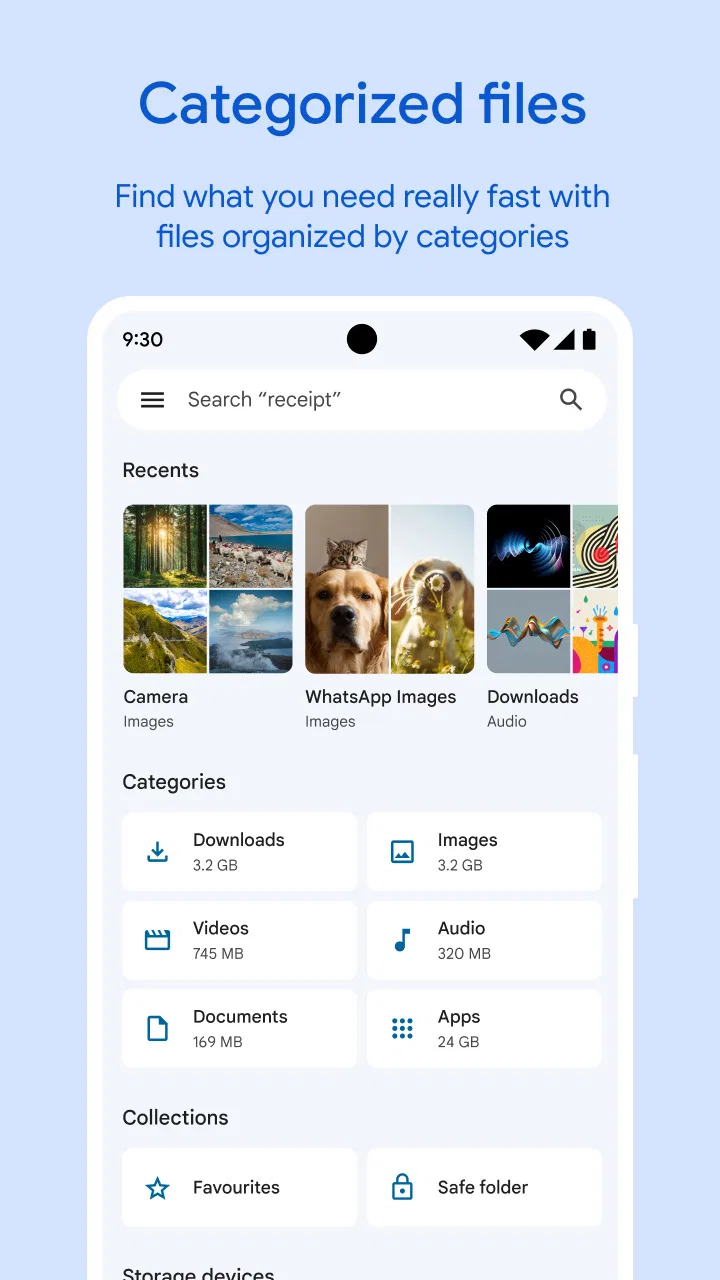
The interface is built around recognizable areas such as files, images, videos, audio, downloads, and storage cleanup. I appreciate this because it supports two different habits. If I know exactly where something was saved, I can browse more traditionally. If I only remember what kind of item it was, the category-based view gives me a faster starting point.
This distinction matters for readability. A long list of filenames can be tiring, especially when names are abbreviated or automatically generated. Category views reduce that burden by letting me begin with the type of content rather than the exact wording. The app also uses cards and grouped suggestions for cleanup, which makes the next action easier to recognize than a dense technical storage screen.
That simplicity is helpful for a first-time Android user, an older relative, or anyone who does not enjoy managing folders. I would be comfortable recommending it to someone who regularly says, “I know it is on my phone somewhere,” because the search and browsing paths feel less intimidating than a traditional desktop-style file explorer.
There is a trade-off, though. A simplified layout can hide detail that experienced users expect immediately. If I need to compare several nested folders, inspect a complicated project structure, or perform careful batch organization, I may need more taps than I would with a specialist file manager. Files by Google favors clarity over density, and that is convenient until the task becomes highly technical.
The cleanup area deserves careful attention. It can surface items that appear safe to remove, but I still read each suggestion before confirming anything. A thumbnail, duplicate-looking item, or old download may be unimportant to the app while still mattering to me personally. The best workflow is to use the suggestions as a review queue, not as an automatic command to erase everything.
One useful habit is to open a suggested group and inspect the individual items before acting. This is particularly valuable when several files have similar names or when a messaging app has saved repeated images. The time saved by the recommendation is real, but the final decision should remain mine.
Motor and sensory considerations
For motor accessibility, the app’s straightforward task flow is a positive. Common actions such as opening a file, moving through categories, selecting content, and sharing do not require learning a complicated command system. I can usually reach the intended result with ordinary taps and back navigation, which reduces the precision and memory demands compared with a tool packed with tiny controls.
At the same time, file management often involves selecting several items, scrolling through lists, and confirming destructive actions. Those interactions can still be tiring for someone with limited dexterity, tremors, or difficulty maintaining a steady touch. The app does not turn a multi-selection task into a hands-free experience. If a user struggles with repeated tapping, a simpler one-file-at-a-time routine may be more manageable than organizing a large collection in one session.
Visual clarity is another strong point in normal use. File types are separated into understandable sections, and media can be recognized through previews rather than names alone. That helps when filenames are confusing. I also find the visual grouping useful when I am distracted or in a hurry, because I can identify the broad purpose of a section before reading every label.
However, visual previews are not a universal solution. A person with low vision may find thumbnails less useful than descriptive filenames, and a person with color-vision differences should not have to rely on color alone to understand a file category. I would pair the app with the phone’s own display, text-size, magnification, and spoken-feedback settings where needed. Those system tools can make the same interface more comfortable, but the experience will vary by device and Android configuration.
For users with hearing loss, the main file-browsing tasks are not dependent on sound, which is reassuring. A person can locate, open, move, delete, or share content visually. The more relevant question is whether the file itself is accessible. Files by Google can help me find a video or audio recording, but it cannot make every piece of media understandable to every listener or viewer. Accessibility of the stored content remains a separate issue.
People with cognitive or attention-related needs may appreciate the app’s limited scope. It is less overwhelming than a utility that exposes every storage path and technical property at once. I also like that it supports a predictable routine: check suggestions, review files, share or delete, then leave. The important caution is not to follow cleanup prompts automatically. A short pause before confirmation protects against decisions made while tired, rushed, or distracted.
Situational access when the phone is busy or offline
Files by Google becomes especially useful in ordinary situations where access to content is awkward. Imagine I am preparing for a trip and need to clear enough room for photos. Instead of opening several apps to guess what is consuming space, I can review the cleanup suggestions, inspect large or unwanted items, and remove only what I recognize. This is more approachable than manually checking every folder.
Another realistic case is helping a family member find a downloaded document. They may remember that it came from a message or website but not remember the folder name. Starting with downloads or a general file search is easier than asking them to understand Android’s storage structure. I can then open the document, share it, or move it into a more memorable location.
You May Also Like

 AccuWeather: Weather Radar
AccuWeather Review: A Quick, Clear Forecast for Everyday Decisions
For everyday plans, the best forecast is the one you can understand quickly. AccuWeather makes rain timing, radar, and local conditions easy to act on, with a few trade-offs.

 Hill Climb Racing
Why Hill Climb Racing Still Turns Crashes Into One More Run
A tiny car, a bumpy hill and one more upgrade: Hill Climb Racing keeps resurfacing because its simple chaos makes every near-miss feel personal.

 AliExpress - Shopping App
AliExpress Makes Global Shopping Feel Personal, but Shoppers Bear the Risk
AliExpress turns a global marketplace into a pocket-sized discovery engine. Its reach is useful, its shopping loop compelling, and its trade-offs easy to miss.

 Lords Mobile: Kingdom Wars
Lords Mobile Is a Kingdom-Building Routine, Not a Quick Match
A case-by-case verdict on the building, battles, device demands, and social commitments that make Lords Mobile rewarding for some players and exhausting for others.

 PDF Scanner app - TapScanner
TapScanner Makes Paperwork Easier to Capture, Check, and Share
TapScanner makes scanning with a phone feel less like a rescue operation and more like a dependable step in getting work done. Its capture tools are useful, though not flawless.

 Block Blast!
Block Blast! Shows How Much a Puzzle Game Can Leave Out
A quiet grid game shows why puzzle players increasingly value instant clarity, repeatable skill and low-pressure play—and where the genre still needs to catch up.
More From Our News Desk
View All News


The offline sharing function is valuable when two nearby people need to exchange files without using mobile data. I see this as a practical option for photos, videos, or documents when a connection is weak or unavailable. It also avoids the extra steps of uploading something to cloud storage and then asking the recipient to download it again. For a user who finds account-based sharing confusing, direct nearby transfer can feel more immediate.
There are still conditions to remember. Both people need to follow the connection flow on their devices, and the experience depends on compatible nearby-device behavior. It is not a universal substitute for sending a link to someone far away. If the recipient is in another location, cloud storage, email, or a messaging service may be the better choice.
I also like using the app as a temporary handoff tool. For example, I can gather several images from different locations, select them together, and share them in one action instead of opening each image in its original app. This reduces context switching. The trade-off is that a large transfer can take time and may be less convenient than a shared album when several people need ongoing access.
For travel, school, and field work, offline file access can reduce dependence on a stable network. A person can keep reference documents, recordings, or downloaded media organized locally. This is not the same as syncing a working folder across devices, so I would not use it as my primary collaboration system. It is better understood as a dependable way to handle what is already on the phone.
Where the app still creates barriers
The first barrier is that “simple” does not mean “self-explanatory” for everyone. Storage concepts such as internal folders, duplicate files, and app-generated downloads can still be unfamiliar. The interface may point me toward a useful action, but I remain responsible for knowing whether an item is safe to remove or whether moving it will affect another app.
The second barrier is precision. Cleaning a phone often requires distinguishing between similar photos, old documents, and files with generic names. A user with limited vision or motor control may need more time to verify each item. The app helps organize the choices, but it cannot remove the need for careful inspection.
Another limitation appears for advanced workflows. I would look elsewhere if I needed detailed permission management, remote access to a computer, sophisticated archive handling, scripted organization, or a highly customizable dual-pane layout. Files by Google is intentionally approachable, but that approach leaves less room for specialist control.
It is also not the ideal answer for every sharing need. Nearby transfer is convenient for people in the same place, while cloud services are usually better for ongoing collaboration, automatic backup, or access from multiple devices. A dedicated photo service may provide a smoother experience for albums and family sharing, and a document-focused app may be better when editing and version history matter more than storage browsing.
Privacy-minded users should also think about their own comfort with cleanup recommendations and file organization. I do not treat a suggested action as proof that a file has no personal value. My practical rule is to open anything unfamiliar, check the location and preview, and only then decide. That small habit makes the app safer to use in a busy household where several people may handle the same phone.
Useful habits that make the experience better
My first tip is to separate discovery from deletion. I use the app to discover what is taking up attention or space, but I make deletion a second step. This prevents the common mistake of treating a convenient recommendation as a final judgment. It is particularly important for screenshots, downloaded forms, and repeated images that may look disposable until I remember why I kept them.
My second tip is to use categories as a memory aid, not only as storage labels. If I cannot recall a filename, I start with the content type and then narrow the list. This works well for recordings, images, and documents gathered from different apps. It also helps when a person has difficulty remembering where an item originated.
My third tip is to prepare offline transfers before the moment of need. If I am about to leave reliable connectivity, I check that the files I may need are actually stored on the phone and can be opened. When sharing with someone nearby, I gather the intended items first rather than trying to select them while managing a queue of people waiting.
A fourth useful approach is to create a personal naming routine outside the app’s automatic suggestions. Files by Google can help me find items, but clear filenames remain valuable for future access, especially when thumbnails are not enough. Renaming and organizing may require more deliberate work than a quick cleanup, yet it pays off for receipts, school materials, medical documents, and work files that I may need months later.
For someone supporting another user, I would demonstrate one complete task rather than explain every feature. Showing how to find a download, preview it, share it, and return to the main screen builds a repeatable pattern. Then I would explain cleanup separately, with emphasis on reviewing before deleting. This reduces the chance that a new user confuses finding a file with removing it.
How it compares with familiar alternatives
Compared with the basic file browser that comes with some Android phones, Files by Google feels more guided. Its cleanup suggestions and category-oriented presentation make it better for users who want help deciding where to begin. A built-in browser may be preferable for someone who wants the fewest extra layers and already understands their folder structure.
Compared with a specialist file manager, it is less focused on deep control. Advanced tools can offer more detailed folder operations, network connections, archive features, or customizable layouts. I would choose one of those when my phone is part of a complex work process. For ordinary storage maintenance and sharing, the simpler design is easier to approach and less likely to expose options I do not need.
Compared with cloud storage, this app is more immediate for local files and nearby transfers. Cloud services win when I need backup, synchronization, remote access, or collaboration. Files by Google is strongest when the content is already on the device and the task is to understand, arrange, open, or pass it along.
That distinction also answers an important question about replacing other apps: I would not expect it to replace a backup service, a full document editor, a photo library, and a professional file manager all at once. It can sit between those tools as the practical place where local content is gathered and handled.
Who should use it and who may prefer something else
I think it is a good fit for Android users who want a free tool from Google LLC for everyday storage tasks, especially people who dislike technical folder structures. It is also useful for families helping someone else manage a phone, travelers who need local access to files, and anyone who regularly shares content with a nearby device.
The app is available at no cost, carries an Everyone age rating, and supports Android 8.0 or later. Its scale is reflected in a 4.5 average from around 8.9 million ratings and more than 5 billion installs, which suggests that it has become a familiar choice for a very broad Android audience. The current release is 1.11362.916736205.0-release, so I would check compatibility before installing on an older phone.
I would steer a user toward another option if they need a highly technical file workflow, automatic multi-device synchronization, remote collaboration, or a specialized accessibility experience with controls designed around a particular impairment. Files by Google can support those users as one part of their setup, but it should not be presented as a complete answer to every access need.
My inclusive verdict
After using it for browsing, cleanup, media access, and offline sharing, I see Files by Google as a thoughtful everyday utility with a low learning curve. Its clearest contribution to inclusive use is the way it reduces the amount of storage knowledge required at the beginning. Categories, previews, and guided cleanup give many people an easier route into tasks that otherwise feel technical.
Its limitations are equally important. It cannot decide what is personally important, eliminate the precision needed for careful selection, or provide every advanced file operation. Users with vision, motor, hearing, or cognitive needs may find the straightforward structure helpful, but their experience will still depend on Android’s system settings, the phone’s hardware, and the accessibility of the files themselves.
I recommend it when you want local file management to feel understandable rather than powerful for its own sake. Use its suggestions as prompts, verify before deleting, and choose cloud or specialist tools when you need backup, collaboration, or deeper control. With that realistic expectation, it is a useful companion for keeping an Android phone readable, organized, and easier to share from.
FAQs for Files by Google
01What features does Files by Google offer?
Files by Google is a versatile app that provides a range of features to manage your device storage efficiently. It allows you to clean up unnecessary files, share files offline, and browse your files easily. The app also includes robust search functionality and integration with Google Drive for seamless cloud storage management.
02Is Files by Google safe to use?
Yes, Files by Google is developed by Google, ensuring a high standard of security and privacy. The app does not access or share your personal data without permission. It provides secure offline file sharing using encryption, protecting your files during the transfer process.
03How does Files by Google help clean up storage?
Files by Google helps clean up storage by identifying junk files, duplicate files, and large files that you may no longer need. It provides personalized recommendations to free up space with just a few taps. The app also highlights apps that are not frequently used, helping you decide which ones to keep or delete.
04Can I use Files by Google to share files offline?
Yes, Files by Google allows you to share files offline without using mobile data. The app uses Bluetooth and Wi-Fi Direct to create a fast and secure peer-to-peer connection. This feature is especially useful for sharing large files with nearby friends or colleagues quickly and efficiently.
05Does Files by Google work on all Android devices?
Files by Google is compatible with most Android devices running Android 5.0 (Lollipop) and above. The app is lightweight and designed to run smoothly even on devices with limited storage and processing power, making it accessible to a wide range of users.
Pros
- Simple and intuitive interface
- Efficient file organization
- Built-in storage cleaner
- Secure file sharing
- Offline file access
Cons
- Lacks advanced file editing
- Limited cloud integration
- Ads can be intrusive
- No support for FTP/SFTP
- Basic media player functionality

Files by Google
Gallery